
01 / OUTPUTS
Three outputs in one pass
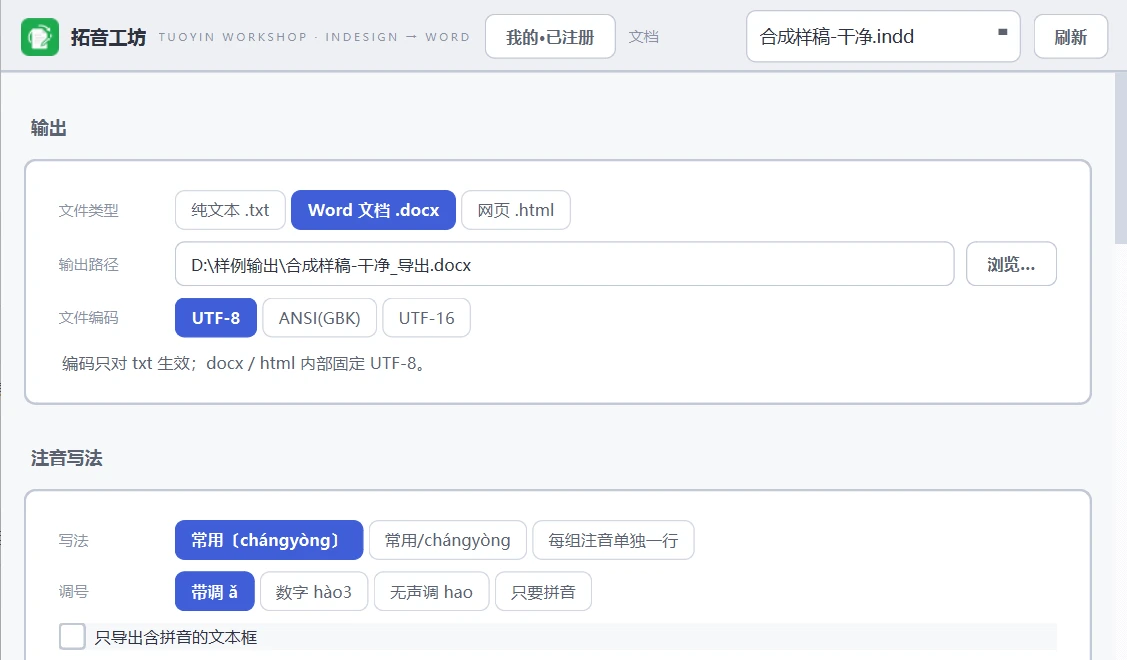
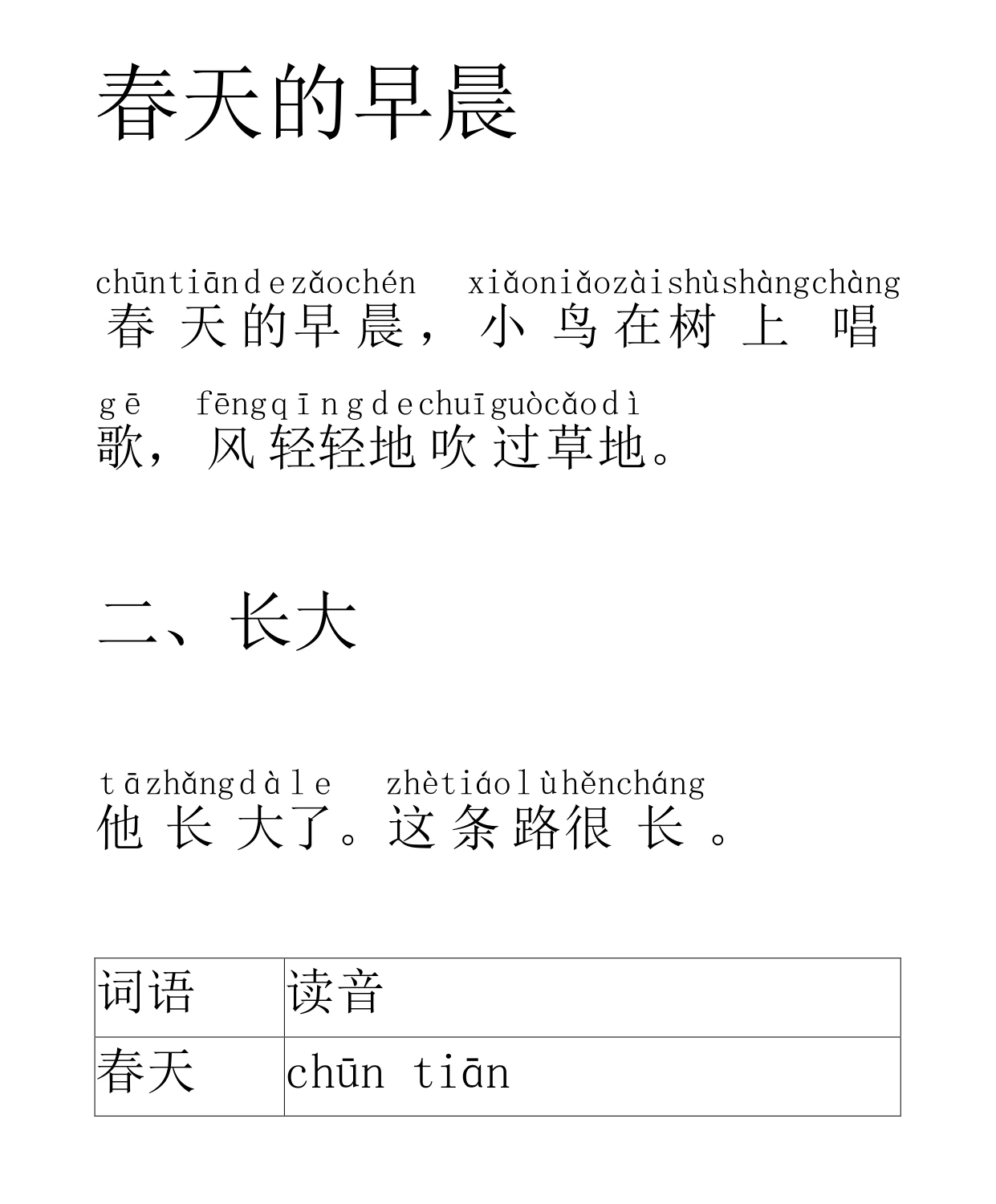
Plain text, Word, or HTML using native ruby tags — browsers show the annotation directly.
For production and revision staff working on children’s readers, pinyin textbooks and language workbooks: once the layout is complete in InDesign, the tool exports a pinyin-annotated Word, text or HTML file for the next stage — three ruby layouts crossed with four tone styles, paragraph styles mapped onto Word built-in headings, and footnotes as native Word notes.
For editors and production staff of children’s readers, pinyin textbooks and language-workbook titles.
Plain text, Word, or HTML using native ruby tags — browsers show the annotation directly.
Accented ǎ, tone numbers hào3, toneless hao, or pinyin only — three layouts crossed with four tone styles.
Join per-character pinyin into words when the list matches, apostrophes inserted automatically; the word list is an editable text file.
Paragraph and character styles, direct formatting, numbering as text, page breaks per page — each item is configurable.
Inserts a real Word TOC field (auto-filled, F9 to update); master-page headers and footers carry across with PAGE fields.
Footnotes and endnotes become native Word notes; InDesign notes become Word comments; a new-character pinyin list can be added.
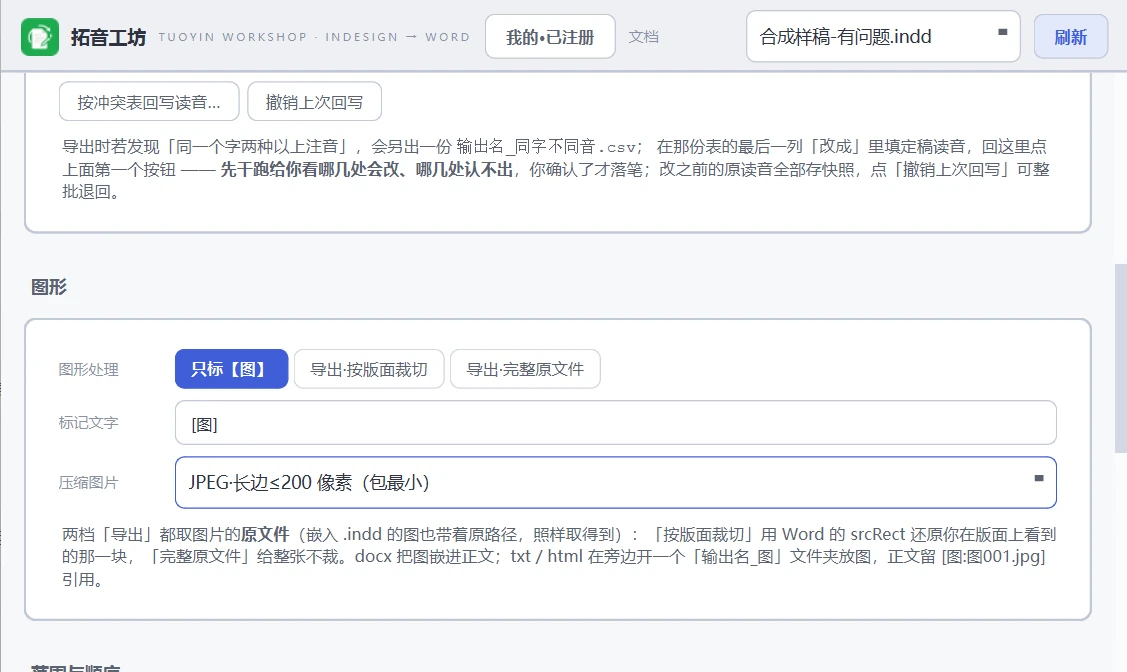
Marker, crop to frame, or the original file; four compression levels — a real 34.8 MB job came back 2.53 MB.
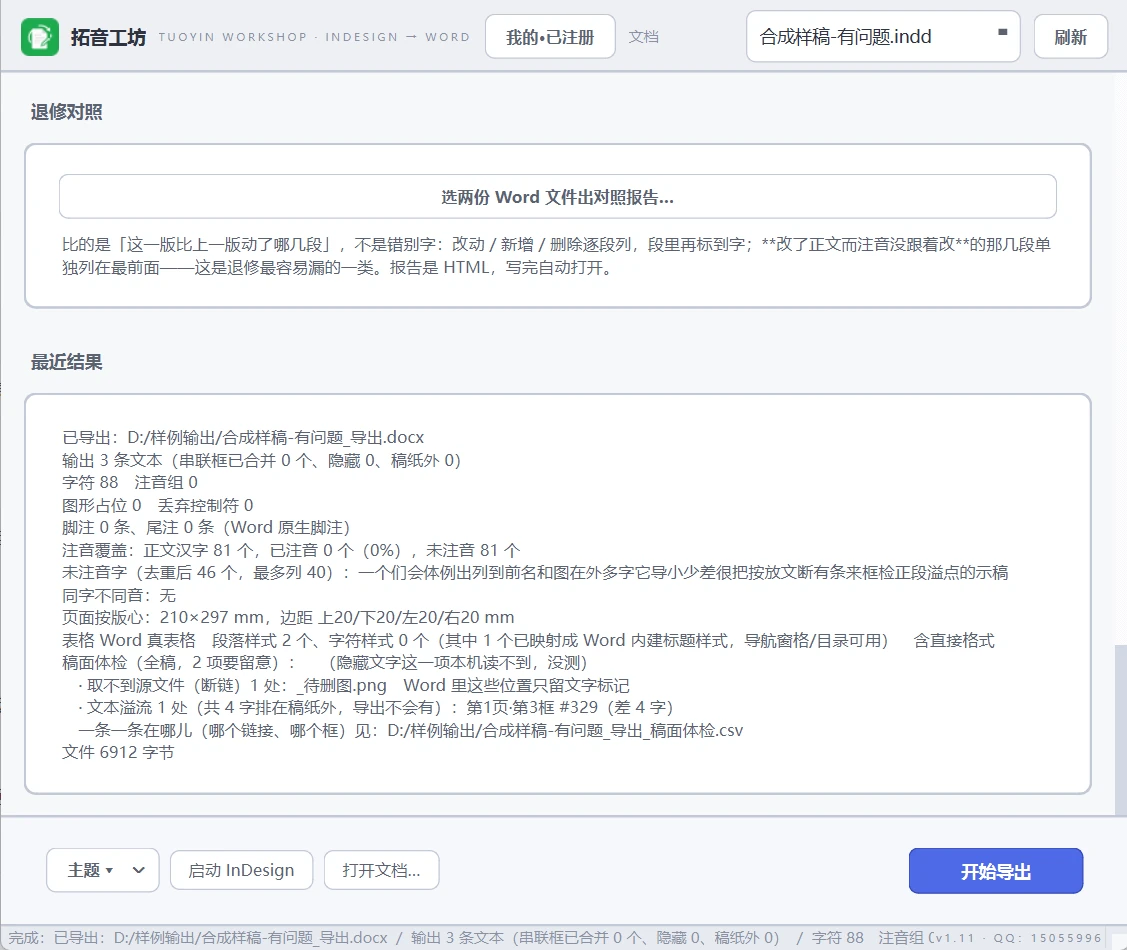
Broken links, changed sources, unusable image formats, non-portable fonts, overflow — with a CSV breakdown.
Paragraph styles map onto Word built-in headings, so the navigation pane and auto TOC work; the mapping table is editable
Scope per document, selection, current page or a page range; batch-export every open document; three frame-ordering rules
Write the chosen readings back into the InDesign story, with a snapshot that can be undone in one click
Diff two Word files into a paragraph-by-paragraph report
Measured on a real book — 112k characters, 108 tables, 5,560 cells and 3 CMYK TIFFs: 120.6 s down to 50.0 s
All demo data (synthetic). Click to enlarge.

A pre-export layout check lists broken links, overflow and ruby coverage before export, reducing rework after delivery (click to enlarge).
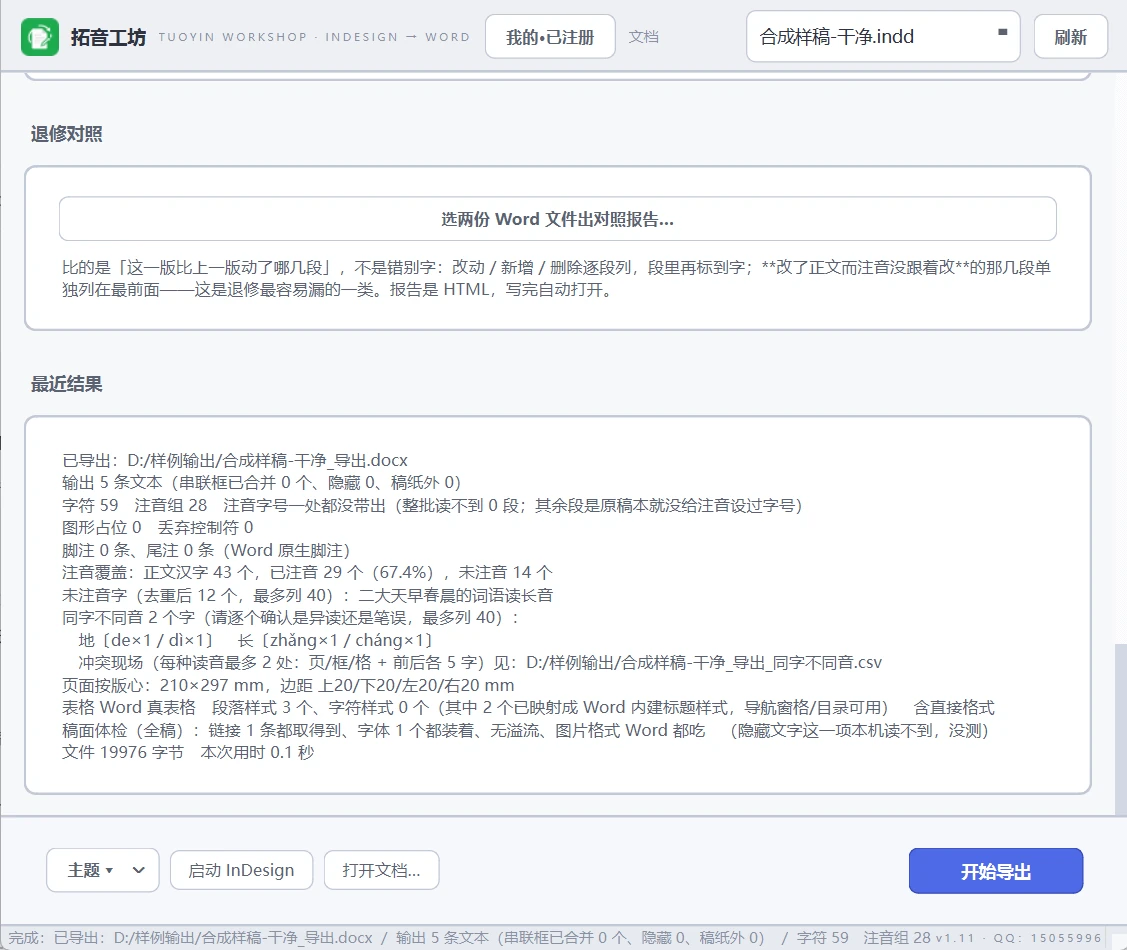
Start the toolkit, connect to the local InDesign instance and refresh the document to be exported.
Select txt / docx / html; set the ruby layout and tone scheme; enable word-level joining as required.
Run the pre-export check; broken links and overflow are listed before export.
Whole story, selection, current page or a page range; export every open document in one run.
Once headings are mapped onto Word built-in heading styles, the navigation pane and automatic TOC are available. The TOC is a Word TOC field that fills on open and updates with F9. Heading paragraphs should not carry ruby, otherwise TOC entries lose their base characters.
Perpetual licence, one machine per card. Activation requires one online check. Before activating on a new machine, unbind the original device and enter the card key on the new device.
Select “Buy now” on this page or in the product overview. After payment, the installer is available under “My tools” in the account centre.
 Beijing Public Security Filing 11010502063040